

OpenMV4 Smart Camera
Materials: https://book.openmv.cc/python-background.html
In OpenMV4, when using color recognition, you inevitably need the threshold of the corresponding color. Through the threshold, you can find the specified color.
Color Threshold Setting
Here we take setting the red threshold as an example.
- Use OpenMV IDE to connect to the camera Open OpenMV IDE and connect to the OpenMV camera.
- Enable OpenMV4 to capture color The example is to recognize red. I use the drawing software on the computer to draw a rectangle.
- Open the threshold editor
- In the pop-up window, select Frame Buffer.
- Get the color threshold By adjusting the sliders, adjust the color we need to recognize to white, and other colors to black. After completion, the LAB threshold below is the color threshold.
Case 1: Serial Custom Format Communication
Use OpenMV4 to capture the center position of the largest color block, and send it to the dev board through a serial custom format.
Wiring
Use the serial port 0 (TX=P01 RX=P02) on the ESP32S3 to connect to the serial port 3 (RX=P5 TX=P4) of OpenMV4. The OpenMV4 in the connection diagram below is the Plus model, but it is also compatible with the regular version.
OpenMV4 Code
Content explanation: Find the largest white color block in the image, and output the data format "[%d,%d]" through serial port 3 (P4 P5) to the dev board's serial port.
WARNING
📌 Don't forget to change (0, 85, 51, 127, -99, 122) in line 14 of the code below to the values obtained from the previous color threshold adjustment.
import sensor, image, time          #Import sensor class, image class, time class
from pyb import UART                #Import UART class

uart = UART(3, 115200)               #Instantiate a serial port 3 with baud rate 115200 (TX=P4   RX=P5)


sensor.reset()                      # Reset and initialize the camera sensor
sensor.set_pixformat(sensor.RGB565) # Set the pixel format to RGB565 (or GRAYSCALE)
sensor.set_framesize(sensor.QVGA)   # Set the frame size to QVGA (320x240)
sensor.skip_frames(time = 2000)     # Wait for settings to take effect
clock = time.clock()                # Create a clock object to track the image frame rate

#White color threshold
white_threshold   =  (0, 85, 51, 127, -99, 122)

# Function to find the largest color block
def find_max(blobs):
    max_size=0
    # Substitute each element of blobs into the variable blob
    for blob in blobs:
        # If the pixel count of the current color block is the largest compared to before
        if blob.pixels() > max_size:
            # Record the color block with the largest pixel count
            max_blob=blob
            # Update the maximum pixel count
            max_size = blob.pixels()
    return max_blob

uart.write("Hello World!\r")    # Output the fixed string "Hello World!" through serial port 3

# Main loop
while(True):
    clock.tick()                    # Update the FPS clock
    img = sensor.snapshot()         # Create an object, take a photo and return the image data to the img object
    print(clock.fps())              # IDE debug output frame rate
                                    # Note: When connected to the IDE, the OpenMV Cam runs at about half speed.
                                    # Once disconnected, the FPS should increase.


    # Find color blocks in the img object based on the input color threshold (white_threshold)
    blobs = img.find_blobs( [ white_threshold ] )

    # If the number of color blocks is not 0
    if blobs:
        # Find the largest color block
        max_blob=find_max(blobs)

        # Draw a rectangle for the found color block in the img image
        # blobs.rect() rectangle parameters of the color block
        # draw_rectangle draws a rectangle frame
        img.draw_rectangle(max_blob.rect())

        # Draw a cross on the image. cx represents the center x point, cy represents the center y point
        img.draw_cross(max_blob.cx(), max_blob.cy())

        # Format the string: format the center xy point of the largest color block according to %d format
        output_str="[%d,%d]" % ( max_blob.cx(), max_blob.cy() )

        # Output string in IDE
        print( 'Maximum color block position : ' + output_str + '\r\n' )
        # Output string through serial port 3
uart.write( 'Maximum color block position : ' + output_str + '\r\n' )ESP32 Code
bsp_openmv4.c
/*
 * LCSC-Openkits (LCKFB) software and hardware materials and related expansion board software and hardware materials are all open source on the official website.
 * Dev board official website: www.lckfb.com
 * Technical support resides on the forum; any technical questions are welcome for exchange and learning at any time.
 * LCKFB Forum: club.szlcsc.com
 * Follow our Bilibili account: [LCSC-Openkits (LCKFB)] to keep up with our latest updates!
 * We do not make money by selling boards; we take cultivating engineers as our mission.
 * Change Logs:
 * Date           Author       Notes
 * 2024-01-09     LCKFB-lp    first version
 */
#include "bsp_openmv4.h"
#include "stdio.h"
#include "string.h"

uint8_t         openmv4_recv_buff[USART_RECEIVE_LENGTH];    // Receive buffer
uint16_t        openmv4_recv_length = 0;                    // Received data length
uint8_t         openmv4_recv_complete_flag = 0;             // Receive complete flag bit

void delay_ms(unsigned int ms)
{
    vTaskDelay(ms / portTICK_PERIOD_MS);
}
void delay_us(unsigned int us)
{
    ets_delay_us(us);
}
void delay_1ms(unsigned int ms)
{
    vTaskDelay(ms / portTICK_PERIOD_MS);
}
void delay_1us(unsigned int us)
{
    ets_delay_us(us);
}
/******************************************************************
 * Function Name: OpenMV4_usart_gpio_config
 * Function Description: OpenMV4 serial port GPIO configuration
 * Function Parameters: band_rate: baud rate
 * Function Return: none
 * Author: LC
 * Notes: LC
******************************************************************/
void OpenMV4_usart_gpio_config(uint32_t band_rate)
{
    //Define the serial port configuration structure, must be assigned an initial value, otherwise it cannot be implemented
    uart_config_t uart_config={0};

    uart_config.baud_rate = band_rate;                  //Configure baud rate
    uart_config.data_bits = UART_DATA_8_BITS;           //Configure data bits as 8 bits
    uart_config.parity = UART_PARITY_DISABLE;           //Configure parity bit as no parity
    uart_config.stop_bits = UART_STOP_BITS_1;           //Configure stop bit as one bit
    uart_config.flow_ctrl = UART_HW_FLOWCTRL_DISABLE;   //Disable hardware flow control

    //Load the above parameters into the registers of serial port 1
    uart_param_config(PORT_UART, &uart_config);

    //Bind pins TX=GPIO_TX_PIN RX=GPIO_RX_PIN RTS=not used CTS=not used
    uart_set_pin(PORT_UART, GPIO_TX_PIN, GPIO_RX_PIN, UART_PIN_NO_CHANGE, UART_PIN_NO_CHANGE);

    //Install serial port driver
    uart_driver_install(PORT_UART, USART_RECEIVE_LENGTH, USART_RECEIVE_LENGTH, 0, NULL, 0);

    //Create a serial port receive task
    xTaskCreate(BSP_OPENMV4_USART_TASK, "BSP_OPENMV4_USART_TASK", USART_RECEIVE_LENGTH*2, NULL, configMAX_PRIORITIES, NULL);
}

//
/******************************************************************
 * Function Name: Openmv4DataAnalysis
 * Function Description: Parse the custom format data [%d,%d] sent by OpenMV4
 * Function Parameters: none
 * Function Return: none
 * Author: LC
 * Notes: none
******************************************************************/
void Openmv4DataAnalysis(void)
{
    char temp[200] = {0};
    char *buff = temp;
    int i = 0;

    //If no data is received or data reception is not complete, do not process
    if( openmv4_recv_complete_flag == 0 ) return;
    //Serial port 0 outputs the received data (for debugging)
    printf( "%s\r\n", openmv4_recv_buff );

    //Clear the receive complete flag bit, wait for the next reception
    openmv4_recv_complete_flag = 0;

    //Find the header of the format '['
    if( strstr((const char*)openmv4_recv_buff, "[" ) != NULL )
    {
        buff = strstr((const char*)openmv4_recv_buff, "[" );
    }


    //Find the end
    while( buff[i] != ']' )
    {
        i++;
        if(i > 200)
        {
            //UART ring buffer flush. Discard all data in the UART RX buffer, prepare for next reception
            uart_flush(PORT_UART);
            openmv4_recv_length = 0;
            //Clear data
            memset(temp,0,200);
            printf("i > 200");
            return;
        }
    }

    //The strncpy function does not pad zeros, so we need to add them manually
    buff[i+1] = '\0';

    printf("buff = %s\r\n", buff );


    //UART ring buffer flush. Discard all data in the UART RX buffer, prepare for next reception
    uart_flush(PORT_UART);
    openmv4_recv_length = 0;
    //Clear data
    memset(temp,0,200);
}

/************************************************
Function Name: BSP_OPENMV4_USART_TASK
Function: Receive data
Parameters: none
Return Value: none
Author: LC
*************************************************/
void BSP_OPENMV4_USART_TASK(void)
{
    while(1)
    {
        if(openmv4_recv_complete_flag == 0)
        {
            //Receive the data length received by the serial port
            openmv4_recv_length = uart_read_bytes(PORT_UART, openmv4_recv_buff, USART_RECEIVE_LENGTH, 10 / portTICK_PERIOD_MS);
            if( openmv4_recv_length > 0 )//Data length greater than 0 means data was received
            {
                openmv4_recv_buff[openmv4_recv_length] = 0;
                openmv4_recv_complete_flag = 1;
            }
        }
        delay_ms(50);

    }

}bsp_openmv4.h
/*
 * LCSC-Openkits (LCKFB) software and hardware materials and related expansion board software and hardware materials are all open source on the official website.
 * Dev board official website: www.lckfb.com
 * Technical support resides on the forum; any technical questions are welcome for exchange and learning at any time.
 * LCKFB Forum: club.szlcsc.com
 * Follow our Bilibili account: [LCSC-Openkits (LCKFB)] to keep up with our latest updates!
 * We do not make money by selling boards; we take cultivating engineers as our mission.
 * Change Logs:
 * Date           Author       Notes
 * 2024-01-09     LCKFB-lp    first version
 */
#ifndef _BSP_OPENMV4_H_
#define _BSP_OPENMV4_H_

#include <stdio.h>
#include "esp_log.h"
#include "freertos/FreeRTOS.h"
#include "freertos/task.h"
#include "driver/uart.h"
#include "driver/gpio.h"
#include "esp_system.h"
#include "esp_rom_sys.h"
#include "esp_timer.h"
#include <stdio.h>
#include <inttypes.h>
#include "sdkconfig.h"
#include "rom/ets_sys.h"
#include "driver/gptimer.h"
#include "freertos/queue.h"
#include "driver/spi_master.h"
#include "nvs_flash.h"

#define GPIO_TX_PIN     2
#define GPIO_RX_PIN     1

#define PORT_UART   UART_NUM_2

/* Data length of the serial port buffer */
#define USART_RECEIVE_LENGTH  1024

void delay_us(unsigned int us);
void delay_ms(unsigned int ms);
void delay_1us(unsigned int us);
void delay_1ms(unsigned int ms);

void OpenMV4_usart_gpio_config(uint32_t band_rate);
void BSP_OPENMV4_USART_TASK(void);
void Openmv4DataAnalysis(void);
#endifCase Verification
Connect the ESP32-S3 dev board and OpenMV4 with wires. In main.c, write the following code. main.c
/*
 * LCSC-Openkits (LCKFB) software and hardware materials and related expansion board software and hardware materials are all open source on the official website.
 * Dev board official website: www.lckfb.com
 * Technical support resides on the forum; any technical questions are welcome for exchange and learning at any time.
 * LCKFB Forum: club.szlcsc.com
 * Follow our Bilibili account: [LCSC-Openkits (LCKFB)] to keep up with our latest updates!
 * We do not make money by selling boards; we take cultivating engineers as our mission.
 * Change Logs:
 * Date           Author       Notes
 * 2024-01-09     LCKFB-lp    first version
 */
#include <stdio.h>
#include "bsp_openmv4.h"

void app_main(void)
{
    OpenMV4_usart_gpio_config(115200); // OpenMV4 serial port initialization
    printf("Start......\r\n");
    while(1)
    {
        Openmv4DataAnalysis();
        delay_ms(100);
    }
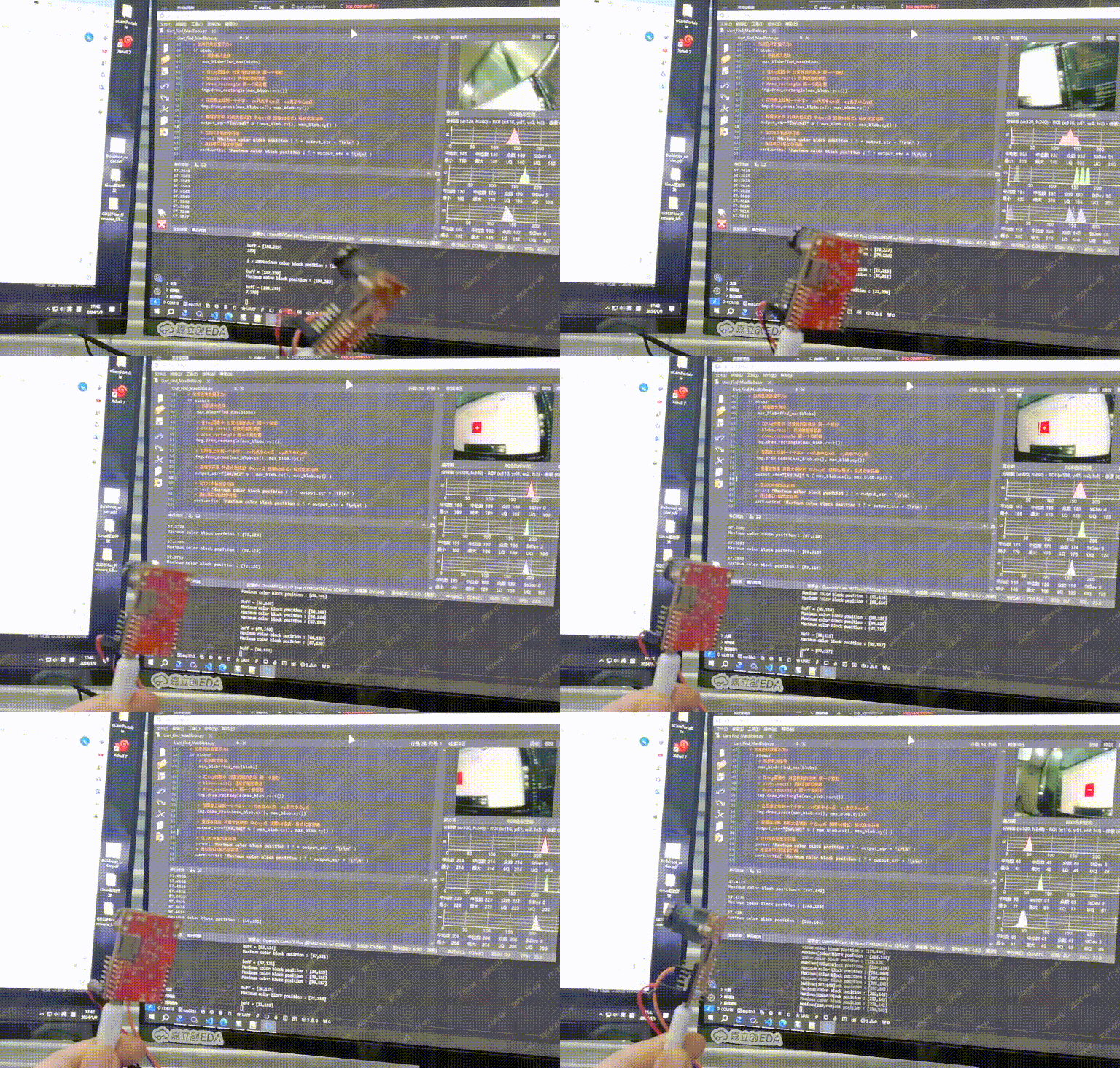
}Power-on effect:
Driver code:
File Download
📌 Materials Download Center (click to jump)
📌 In the Materials Download Center -> Module Porting Materials Download, inside the compressed package of this chapter.
Case 2: Arbitrary Color Line Tracking
WARNING
📌 The ESP32 dev board code is the same as [Case 1].
Use the serial port 0 (TX=P01 RX=P02) on the ESP32S3 to connect to the serial port 3 (RX=P5 TX=P4) of OpenMV4. The OpenMV4 in the connection diagram below is the Plus model, but it is also compatible with the regular version.
OpenMV4 Code
Code description: To implement line tracking of any color, you need to know the color and position of the line. Line color recognition is performed through color block search; for position determination, after recognizing the line color, draw a cross-shaped symbol '+' at the center of the recognized area, and record the center position of the color block, named x_location.
How to recognize the line color? Search through the find_blobs() function Compare x_location with the X-axis center of the image to get the line position Line_position. The X-axis center of the image is named centre When x_location > centre, Line_position is set to a positive value; the larger x_location is, the larger Line_position is. When x_location < centre, Line_position is set to a negative value; the smaller x_location is, the smaller Line_position is. When x_location = centre, Line_position is set to 0.
How to implement tracking? Place OpenMV4 in the middle position. When Line_position is a negative number, it means the recognized line is on the left side of the image. We need to control the car to turn left. When Line_position is a positive number, it means the recognized line is on the right side of the image. We need to control the car to turn right. When Line_position is 0, it means the recognized line is in the middle of the image. We go straight forward.
Note that the line color cannot be the same as the background color, otherwise this case will fail.
WARNING
📌 Don't forget to change (19, 0, -128, 62, -128, 77) in line 14 of the code below to the values obtained from the previous color threshold adjustment.
import sensor, image, time, math#Call declaration
from pyb import UART
import json

#Modify the color threshold here to achieve arbitrary color recognition tracking
#For color threshold modification, please refer to: "Color Threshold Selection Tool"   https://book.openmv.cc/image/blob.html
GRAYSCALE_THRESHOLD =(19, 0, -128, 62, -128, 77)
# Rectangular area for color recognition
Identification_region = [0, 50, 160, 20]
# X-axis position of the color block
x_location = 0
# X-axis center of the image
centre = 0
# Line position
Line_position = 0

# Camera configuration
sensor.reset()                      # Initialize camera sensor
sensor.set_pixformat(sensor.RGB565) # Set the camera pixel mode to 16 bits/pixel (i.e., display color)
sensor.set_framesize(sensor.QQVGA2) # Camera sensor with 128x160 resolution
sensor.skip_frames(30)              # Skip 30 frames to let the camera image stabilize after changing camera settings


uart = UART(3,115200)                       #Instantiate a serial port 3 with baud rate 115200 (TX=P4   RX=P5)
uart.init(115200,bits=8,parity=None,stop=1) #Configure the baud rate, data bits, parity bit, and stop bit of the serial port

while(True):
    img = sensor.snapshot() # Take a photo and return the image

    #Set the X-axis center of the image
    centre = (img.width() / 2)

    # Find the color set by the color threshold [GRAYSCALE_THRESHOLD]
    blobs = img.find_blobs([GRAYSCALE_THRESHOLD], roi=Identification_region, merge=True)
    # roi is the rectangular tuple of the region of interest (x, y, w, h). If [10,10,20,20] is specified, it will look for color blocks starting at position (10,10) with width and height both 20
    # If roi is not specified, ROI is the image rectangle of the entire image. The operation range is limited to the pixels within the roi region.
    # merge If True, merge all color blocks that have not been filtered out, whose bounding rectangles overlap each other.

    #Color block recognized
    if blobs:
        most_pixels = 0   #Pixels of the largest color block
        largest_blob = 0  #Largest color block
        for i in range(len(blobs)):
        #There may be more than one color block (line segment block) found in the target region. Find the largest one as the target line in this region
            if blobs[i].pixels() > most_pixels:
                most_pixels = blobs[i].pixels() #Record the pixels of the largest color block
                largest_blob = i                #Record the largest color block

            # Draw a rectangle at the found largest color block
            img.draw_rectangle(blobs[largest_blob].rect())

            #Draw a rectangle from start point (0,0) to end point (30,30)
            #img.draw_rectangle((0,0,30, 30))

            # Draw a cross at the center of the largest color block
            #.cx() represents the x-axis of the center point, .cy() represents the y-axis of the center point
            img.draw_cross(blobs[largest_blob].cx(),blobs[largest_blob].cy())

            #Record the X-axis position of the center point
            x_location = blobs[largest_blob].cx()

    #Color block not recognized
    else:

        x_location = centre

    #Draw a red cross in the middle of the image to easily determine the position of the screen center
    img.draw_cross(int(centre), int(img.height()/2), color = (255, 0, 0), size = 10 )
    #Draw a blue rectangle in the recognition region
    img.draw_rectangle(Identification_region,color=(0, 0, 255))


    #Calculate the distance of the color block from the screen center. After (img.width() / 2), if the center point of the color block is on the left side of the screen, it is a negative value; if on the right side, it is a positive value
    Line_position="[%d]"%( x_location - centre )


    # Serial port 3 sends data
    uart.write(Line_position+'\r\n')

    # IDE debug output, the following content can be deleted

    #Less than -10 outputs left turn
    #Greater than 10 outputs right turn
    #Between -10 and 10 outputs forward
    num = x_location - centre
    if (num <= 10 and num >= -10):
        print("Forward")
    elif num > 10:
        print("Turn right")
    elif num < 10:
        print("Turn left")

    #Output
print(Line_position)Case Verification
Case 3: Rectangle Recognition and Center Determination
OpenMV4 Code
import sensor, image, time

sensor.reset()
sensor.set_pixformat(sensor.RGB565)
sensor.set_framesize(sensor.QQVGA2)#Pixel 128x160
sensor.skip_frames(time = 2000)
clock = time.clock()

# Function to find the largest rectangle block
def find_max(rects):
    rect_max=0
    # Substitute each element of blobs into the variable rect
    for rect in rects:
        # If the width of the current rectangle is the largest compared to before
        if rect.w() > rect_max:
            global max_rect
            # Record this largest rectangle
            max_rect = rect
            # Update the maximum rectangle width
            rect_max = rect.w()

    #Return this largest rectangle element
    return max_rect

while(True):
    #Record frame rate
    clock.tick()
    #Take a photo
    img = sensor.snapshot()

    #Find the largest rectangle block, search range x=0,y=20,w=128,h=120
    rects = find_max(img.find_rects(roi=(0,20,128,120)))

    #Draw a green rectangle frame for the found largest rectangle
    img.draw_rectangle(rects.x(),rects.y(),rects.w(),rects.h(),color=(0,255,0))

    #Calculate the rectangle center
    #Center X position: rectangle pixel width / 2 + x-axis start position
    #Center Y position: rectangle pixel height / 2 + y-axis start position
    x_central = (rects.w() / 2) + rects.x()
    y_central = (rects.h() / 2) + rects.y()

    #Display the X, Y position of the center of the largest recognized rectangle
    img.draw_string(2,1,"x=%d y=%d"%(x_central,y_central))

    #Draw a blue cross at the center of the found rectangle
    img.draw_cross(int(x_central), int(y_central), color = (0, 0, 255), size = 5 )

    #Draw a red box in the search area
    #The smaller the area, the higher the frame rate
    img.draw_rectangle(0,20,128,120,color=(255,0,0))

    #IDE output frame rate
print(clock.fps())Case Verification
Case 4: Arbitrary Angle Rectangle Recognition and Corner Positioning
OpenMV4 Code
import sensor, image, time


# Initialize camera
sensor.reset()
sensor.set_pixformat(sensor.RGB565) # Set image color format to RGB565 format
sensor.set_framesize(sensor.QQVGA)  # Set image size to 160*120
sensor.set_auto_whitebal(True)      # Set automatic white balance
sensor.set_brightness(3000)         # Set brightness to 3000
sensor.skip_frames(time = 20)       # Skip frames

clock = time.clock()

while(True):
    clock.tick()
    img = sensor.snapshot()
    #Remove fisheye distortion
    img.lens_corr(1.8)
# -----Rectangle frame part-----
    # Find rectangles in the image
    for r in img.find_rects(threshold = 10000):
        # Determine whether the rectangle side length meets the requirements
        if r.w() > 20 and r.h() > 20:
            # Draw the rectangle on the screen
            img.draw_rectangle(r.rect(), color = (255, 0, 0), scale = 4)
            # Get the rectangle corner positions
            corner = r.corners()
            # Circle the rectangle corners on the screen
            img.draw_circle(corner[0][0], corner[0][1], 5, color = (255, 0, 0), thickness = 2, fill = False)
            img.draw_circle(corner[1][0], corner[1][1], 5, color = (0, 255, 0), thickness = 2, fill = False)
            img.draw_circle(corner[2][0], corner[2][1], 5, color = (0, 0, 255), thickness = 2, fill = False)
            img.draw_circle(corner[3][0], corner[3][1], 5, color = (255, 255, 0), thickness = 2, fill = False)

            # Print the four corner coordinates, the array of corner 1 is corner[0], and the coordinates are (corner[0][0],corner[0][1])
            # The corner order output by corner detection may not be consistent each time. The upper-left corner of the rectangle may be any one of corner0,1,2,3
            left_down_dot  ="LD=[%d,%d]"%(corner[0][0],corner[0][1])   #Red point
            right_down_dot ="RD=[%d,%d]"%(corner[1][0],corner[1][1])   #Green point
            right_up_dot   ="RU=[%d,%d]"%(corner[2][0],corner[2][1])   #Blue point
            left_up_dot    ="LU=[%d,%d]"%(corner[3][0],corner[3][1])   #Yellow point
            print(left_up_dot + "\n" + left_down_dot + "\n" + right_up_dot + "\n" + right_down_dot)

    # Print frame rate
print(clock.fps())Case Verification
Case 5: Laser Recognition and Positioning
Circle the recognized red laser with a black box and output the laser X and Y axis positions in the IDE.
OpenMV4 Code
import sensor, image, time
from pyb import UART                #Import UART class

uart = UART(3, 115200)               #Instantiate a serial port 3 with baud rate 115200 (TX=P4   RX=P5)

sensor.reset()                      # Reset and initialize the camera sensor
sensor.set_pixformat(sensor.RGB565) # Set the pixel format to RGB565 (or GRAYSCALE)
sensor.set_framesize(sensor.QVGA)   # Set the frame size to QVGA (320x240)
sensor.skip_frames(time = 2000)     # Wait for settings to take effect
clock = time.clock()                # Create a clock object to track the image frame rate

# Initialize camera
sensor.reset()
sensor.set_pixformat(sensor.RGB565) # Set image color format to RGB565 format
sensor.set_framesize(sensor.QQVGA)  # Set image size to 160*120
sensor.set_auto_whitebal(True)      # Set automatic white balance
sensor.set_brightness(3000)         # Set brightness to 3000
sensor.skip_frames(time = 20)       # Skip frames

clock = time.clock()

while(True):
    clock.tick()
    img = sensor.snapshot()
    #Remove fisheye distortion
    img.lens_corr(1.8)

    # -----Laser tracking part-----
    # Set red laser color threshold
    G_td = [(91, 100, -128, 127, -75, 127)]
    # Find color blocks based on the threshold
    for b in img.find_blobs(G_td,pixels_threshold=2, area_threshold=15, merge=True,invert = 0):
        # Draw a black rectangle at the recognized laser
        img.draw_rectangle(b.rect(), color = (0, 0, 0), scale = 1, thickness = 2)

        # Print the center position of the laser color block
        # Use b.x() to get the X coordinate of the top-left corner of the color block rectangle
        # Use b.y() to get the Y coordinate of the top-left corner of the color block rectangle
        # Use b.w() to get the width of the color block rectangle
        # Use b.h() to get the height of the color block rectangle
        # The center coordinates of the rectangle are (x + w/2, y + h/2)
        print("[%d,%d]"%( (b.x() + b.w()/2), (b.y() + b.h()/2 ) ))
        # Format the string
        output_str="[%d,%d]" % ( (b.x() + b.w()/2), (b.y() + b.h()/2 ) )
        # Output string through serial port 3
        uart.write( 'Point:' + output_str + '\r\n' )
        break


    # Print frame rate
print(clock.fps())Case Verification
If the red laser point cannot be recognized, please configure your threshold according to the color threshold setting chapter.