

Description
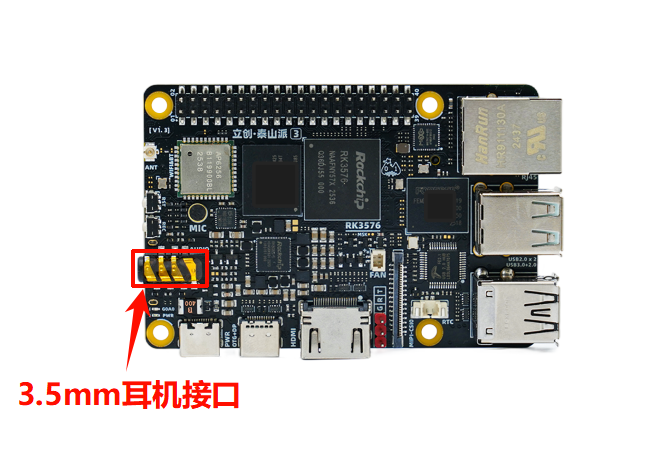
- 3.5mm headphone jack (supports headphones and microphone)
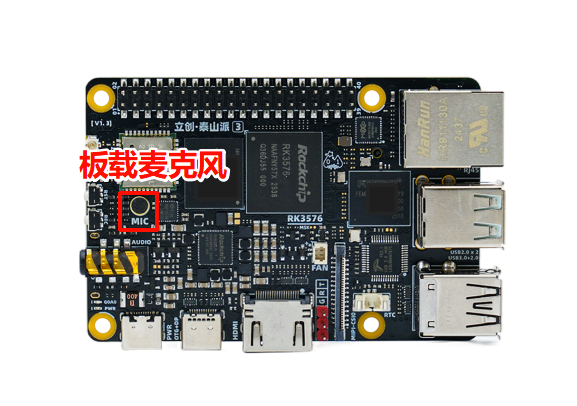
- On-board microphone
Download Corresponding Image
Use Network Disk🚀 to download our provided .img image file from the System Image/Buildroot/ directory.
The image used in this document is: TaishanPi-3M-RK3576_Buildroot_AP6256-mSATA.img
Basically all images have all audio interfaces enabled by default, so there is no need to download a specific image.
Flash Image to Development Board
Reference Finished Image Flashing to flash the downloaded image file to the development board.
Connect 3.5mm Headphone
First, insert the 3.5mm headphone into the board's headphone jack, and start recording:
arecord -D hw:0,0 -f cd -r 44100 -c 2 -V stereo headset_stereo.wavStart recording, then speak into the headphone's microphone. After recording is complete, press Ctrl+C to stop recording. To play the recording, use the following command:
aplay -D plughw:0,0 headset_stereo.wavYou can hear what you just said being recorded.
Use On-board Microphone
First, remove the 3.5mm headphone and start recording:
arecord -D hw:0,0 -f cd -r 44100 -c 2 -V stereo board_stereo.wavSpeak into the on-board microphone on the board. After recording is complete, press Ctrl+C to stop recording. Insert the 3.5mm headphone again and enter the following command to play the recording:
aplay -D plughw:0,0 board_stereo.wavYou can hear the sound recorded through the on-board microphone.